
Input field components

Components allow you to specify properties to define how a property will be displayed on the content form. For example, you can choose to display a number as a slider, allow text to be entered across multiple lines and control the way colors are chosen in the color picker.

This page contains the parameters for components that can be used for input fields and added to properties of type string, number, integer and boolean.

Try the interactive examples on this page

Edit the schemas to see how your changes affect the fields they generate.

You an also specify some parameters for properties of type object and array.

Specifying property component parameters
Link copied!

To provide parameters to a component add the "ui:component" keyword to a property as shown below. In this example we have a string property that we want to display using the multi line text component.

You need to specify the component name together with the params. The component names are included on this page.

"properties":{
"multiLineText":{
"type":"string",
"title":"Multi-line",
"description":"Text area component",
"ui:component":{
"name":"text-area",
"params":{
"minRows":2,
"maxRows":5
}
}
}
}

If you do not specify a component name, then the default component will be used for the property type, although you can still specify parameters.

Text
Link copied!

For properties of type string with no component name specified the default string component is used.

Parameters
Link copied!

ParameterDescription
placeholderInitial guide text

Example
Link copied!

    Rich text (markdown)
    Link copied!

    A rich text component that supports markdown. Used with a property of type string and format markdown. You do not have to specify the component name.

    ParameterDescription
    defaultViewWhether the initial view should be the markdown or rich text editor. markdown or editor (default)
    withMarkdownViewIs the markdown view shown. true (default) or false
    withToolbarIs the toolbar shown. true (default) or false

    Example
    Link copied!

      Text area
      Link copied!

      A component that renders single or multi line text.

      Parameters
      Link copied!

      ParameterDescription
      nametext-area
      minRowMinimum number of rows for the text box
      maxRowMaximum number of rows for the text box
      placeholderInitial guide text
      autosizetrue or false. Specifies if the text area should grow with the content. false by default.

      Example- Text area
      Link copied!

        Example- Localized text area
        Link copied!

          Integer
          Link copied!

          For properties of type integer with no component name specified the default integer component is used. This is an editable text box with up and down arrows.

          Parameters
          Link copied!

          ParameterDescription
          suffixString. Character added to the end of each number, for example degrees or percentage
          defaultValueThe value used if there is no user input
          allowNegativetrue (default) or false. Should negative numbers be allowed
          stepThe increment used by the up and down arrows
          variantfilled or unsettled
          thousandSeparatorThe string used to delimit thousands

          Example
          Link copied!

            Number
            Link copied!

            For properties of type number with no component name specified the default number component is used. This is an editable text box with up and down arrows.

            Parameters
            Link copied!

            ParameterDescription
            suffixString. Character added to the end of each number, for example degrees or percentage
            allowNegativetrue (default) or false. Should negative numbers be allowed
            stepThe increment used by the up and down arrows
            precisionThe number of decimal places
            variantfilled or unsettled
            thousandSeparatorThe string used to delimit thousands

            Example
            Link copied!

              A component that shows a list of string, integer or number. The list is populated from an enum.

              Parameters
              Link copied!

              You can control the behaviour of the scroll bars in the list by setting the scrollAreaProps and choosing the type as shown in the table below. You should use auto if the list contains more items than can be shown without scrolling (usually 6 items).

              ParameterDescription
              hoverVisible on hover
              scrollVisible on scroll (default)
              autoAlways visible when the list contains more items than can be shown without scrolling
              alwaysAlways shown
              neverAlways hidden

              Example
              Link copied!

                A component that shows a list of labels and values. The list is populated using the oneOf keyword and can be used with string, integer and number.

                The title of each item is shown as the label in the list, while the value selected is defined by a const.

                Parameters
                Link copied!

                ParameterDescription
                searchabletrue (default) or false . Determines whether the user can enter a value to search the list as well as scrolling

                Example
                Link copied!

                  Color
                  Link copied!

                  A color picker component. Used with a property of type string and format color.

                  Parameters
                  Link copied!

                  ParameterDescription
                  namecolor
                  placeholderInitial guide text
                  formatColor format. hex or RGBA. Hex is the default
                  colorsAn array of colors. Displayed as swatches at the bottom of the picker
                  withPickertrue (default) or false. If set to false the user will only be able to choose a color from the swatches
                  withEyeDroppertrue (default) or false. The eyeDropper tool is displayed on the right of the color input field and allows users to hover over and pick the color of any onscreen element
                  disallowInputtrue or false (default). Set to true if you do not want the user to be able to input a color value

                  Example
                  Link copied!

                    Uri
                    Link copied!

                    A component that displays properties of type string and format uri. No name is specified so the default text component is used.

                    Parameters
                    Link copied!

                    ParameterDescription
                    placeholderInitial guide text

                    Example
                    Link copied!

                      Slider
                      Link copied!

                      A component for allowing integers and numbers to be entered using a slider. Used with properties of type integer or type number.

                      Parameters
                      Link copied!

                      ParameterDescription
                      nameslider
                      placeholderInitial guide text
                      defaultValueThe initial value of the slider
                      invertedtrue or false (default)
                      marksMarks displayed along the slider. An array of value and label.
                      stepThe amount the slider will be incremented using the thumb and arrows
                      pxInline padding. xs, sm, md, lg or xl

                      Example
                      Link copied!

                        Date-time
                        Link copied!

                        A component for representing a user selectable date and time. Used with a property of type string and format date-time.

                        Parameters
                        Link copied!

                        ParameterDescription
                        namedate-time
                        placeholderInitial guide text

                        Example
                        Link copied!

                          Date-time input
                          Link copied!

                          A component for allowing the user to enter a date and time using edit fields rather than a selectable date and time.

                          Parameters
                          Link copied!

                          ParameterDescription
                          namedate-time-input

                          Example
                          Link copied!

                            Date
                            Link copied!

                            A component for representing a user selectable date. Used with a property of type string and format date.

                            Parameters
                            Link copied!

                            ParameterDescription
                            namedate
                            placeholderInitial guide text
                            valueFormatThe format shown of the date as shown in the form. For example: "MM-DD-YYYY".
                            Note that this will not effect the JSON output which will always be of the form YYYY-MM-DD
                            defaultDateThe initial date. For example: "2015 March".
                            Note this parameter does not currently work with the Apple Safari browser
                            defaultLevelSet this to "year" to allow the user to initially choose the year, then the month and day.
                            Note this parameter does not currently work with the Apple Safari browser

                            Example
                            Link copied!

                              Time
                              Link copied!

                              A component for representing a user selectable time. Used with a property of type string and format time.

                              Parameters
                              Link copied!

                              ParameterDescription
                              nametime
                              placeholderInitial guide text
                              pointerDetermines if a cursor pointer is shown. true or false (default)

                              Example
                              Link copied!

                                Boolean
                                Link copied!

                                A checkbox component used for allowing the user a boolean selection.

                                Parameters
                                Link copied!

                                ParameterDescription
                                nameswitch
                                labelPositionleft or right (default)

                                Example
                                Link copied!

                                  Objects
                                  Link copied!

                                  For complex properties that contain other properties, you can decide to hide the header, the title and description, to reduce the amount of space the property takes up.

                                  You can also choose to set an object to be initially collapsed.

                                  Parameters
                                  Link copied!

                                  ParameterDescription
                                  collapsedtrue or false (default). Is the property initially collapsed?
                                  This takes priority over default behaviour and the user setting for content.
                                  withHeadertrue (default) or false. Is the title and description shown for the top level item

                                  Example
                                  Link copied!

                                    Arrays
                                    Link copied!

                                    A list component with additional support for flexible lists of multiple types of content (content palettes).

                                    Parameters
                                    Link copied!

                                    ParameterDescription
                                    collapsedtrue or false (default). Is the property initially collapsed?
                                    This takes priority over default behaviour and the user setting for content.
                                    withChildHeaderstrue or false (default). Set to true to hide the top level headers in the array
                                    iconsIcons displayed in the selection menu for the content palette

                                    Supported icons
                                    Link copied!

                                    Expand the section below to see the icons supported in a content palette.

                                    Supported icons
                                    Icon nameIcon
                                    articlearticlearticle
                                    blockquoteblockquoteblockquote
                                    carousel-horizontalcarousel-horizontalcarousel-horizontal
                                    carousel-verticalcarousel-verticalcarousel-vertical
                                    clock-hour-11clock-hour-11clock-hour-11
                                    codecodecode
                                    color-swatchcolor-swatchcolor-swatch
                                    columns-2columns-2columns-2
                                    columns-3columns-3columns-3
                                    containercontainercontainer
                                    device-mobiledevice-mobiledevice-mobile
                                    device-laptopdevice-laptopdevice-laptop
                                    device-tabletdevice-tabletdevice-tablet
                                    float-rightfloat-rightfloat-right
                                    float-leftfloat-leftfloat-left
                                    headingheadingheading
                                    htmlhtmlhtml
                                    layoutlayoutlayout
                                    layout-bottombarlayout-bottombarlayout-bottombar
                                    layout-gridlayout-gridlayout-grid
                                    linklinklink
                                    listlistlist
                                    list-numberslist-numberslist-numbers
                                    map-plusmap-plusmap-plus
                                    musicmusicmusic
                                    numbersnumbersnumbers
                                    photo-plusphoto-plusphoto-plus
                                    plusplusplus
                                    sectionsectionsection
                                    seoseoseo
                                    separatorseparatorseparator
                                    shareshareshare
                                    slideshowslideshowslideshow
                                    square-plussquare-plussquare-plus
                                    table-plustable-plustable-plus
                                    templatetemplatetemplate
                                    text-captiontext-captiontext-caption
                                    text-plustext-plustext-plus
                                    typographytypographytypography
                                    video-plusvideo-plusvideo-plus

                                    Example: array without child headers
                                    Link copied!

                                      Example: array with content palette
                                      Link copied!

                                      The following example shows a flexible list of content (a content palette) with text and banner objects. We've included params to configure the icons used for each object in the content palette menu selector. The icons map to the value of the const in the type property defined in each object.

                                      If there are 3 or fewer items defined in the array then the user selects content using buttons, while more than 3 items are shown in a menu with the icons that you specify.

                                      See the content palette schema reference and schema examples for more details.

                                        Matrix
                                        Link copied!

                                        The matrix component represents a table of rows and columns. It's ideal for modelling input for an FAQ or a buyer's guide or other structured data, in a format that makes it convenient for users to enter data. The matrix is used with array properties.

                                        The properties stored in the columns of a matrix are scalar data types: number, integer, string and boolean, as well as rich text, images and video. You cannot add content links, content references, objects, localized values, or any property that uses an extension.

                                        Parameters
                                        Link copied!

                                        ParamTypeDescription
                                        namestringmatrix
                                        columnsarrayThe name and properties of each column

                                        Columns array
                                        Link copied!

                                        ParamTypeDescription
                                        pointerstringA JSON pointer reference to the property to be shown in this column. For example: "/machineWashable"
                                        titlestringOptional. The name of the column. If this is not included then the column number will be shown
                                        widthintegerThe width of the column in pixels. The minimum column width is 140px

                                        Note that the maximum row height is 175px without scrolling.

                                          Media card
                                          Link copied!

                                          The media card is used to display images and video with a title, description and optional alt text for images.

                                          Parameters
                                          Link copied!

                                          ParameterDescription
                                          withAltTextFor images only. Should alt text metadata be shown on the card. true (default) or false.

                                          Example
                                          Link copied!

                                          The example shows an image property configured with alt text turned off. By default alt text will be turned on. You only need to specify the altText param if you don't want the alt text icon to be shown on the media card.

                                            Localized value set
                                            Link copied!

                                            This component allows you to choose the locales that are shown for a property. It is designed for use with field level localized properties.

                                            Note that if the user filters out one of the pinned locales then a message will be displayed that a pinned property is hidden.

                                            Parameters
                                            Link copied!

                                            ParameterDescription
                                            namelocalized-value-set
                                            pinnedLocalesAn array of locales that are initially shown for a property (eg en-US, fr-FR). Users may choose additional locales, but the pinned locales cannot be removed
                                            withHeadertrue (default) or false. Is the title and description shown for the top level item

                                            Example: localized value with pinned locales
                                            Link copied!

                                            This example shows the use of the localized value set component. This component is used with field level localized properties and allows you to specify the locales that are shown by default for each property.

                                            Using the component with a localized property helps improve the authoring experience if you have multiple locales on your hub and only want to view and add values for certain locales.

                                            In this example there are localized string, image and list properties. We have used the pinnedLocales param to show the en-GB and fr-FR locales by default for each property. The user can choose to view additional locales.

                                            If one of the pinned locales is hidden, using the locale filter at the top of the screen, then a message will be displayed.

                                            {
                                            "$schema": "http://json-schema.org/draft-07/schema#",
                                            "$id": "https://schema-examples.com/localized-value-set",
                                            "title": "Title",
                                            "description": "Description",
                                            "allOf": [
                                            {
                                            "$ref": "http://bigcontent.io/cms/schema/v1/core#/definitions/content"
                                            }
                                            ],
                                            "type": "object",
                                            "properties": {
                                            "localizedString": {
                                            "title": "Localized String",
                                            "description": "Enter localized text",
                                            "allOf": [
                                            {
                                            "$ref": "http://bigcontent.io/cms/schema/v1/localization#/definitions/localized-string"
                                            }
                                            ],
                                            "ui:component": {
                                            "name": "localized-value-set",
                                            "params": {
                                            "pinnedLocales": ["en-GB", "fr-FR"]
                                            }
                                            }
                                            },
                                            "localizedImage": {
                                            "title": "Localized image",
                                            "allOf": [
                                            {
                                            "$ref": "http://bigcontent.io/cms/schema/v1/localization#/definitions/localized-image"
                                            }
                                            ],
                                            "ui:component": {
                                            "name": "localized-value-set",
                                            "params": {
                                            "pinnedLocales": ["en-GB", "fr-FR"]
                                            }
                                            }
                                            },
                                            "localizedList": {
                                            "$comment": "The user can enter up to 4 strings for each locale",
                                            "title": "Localized list",
                                            "description": "Enter uo to 4 strings for each locale",
                                            "allOf": [
                                            {
                                            "$ref": "http://bigcontent.io/cms/schema/v1/core#/definitions/localized-value"
                                            }
                                            ],
                                            "ui:component": {
                                            "name": "localized-value-set",
                                            "params": {
                                            "pinnedLocales": ["en-GB", "fr-FR"],
                                            "withHeader": false
                                            }
                                            },
                                            "properties": {
                                            "values": {
                                            "items": {
                                            "properties": {
                                            "value": {
                                            "type": "array",
                                            "maxItems": 4,
                                            "items": {
                                            "description": "A string for this locale",
                                            "type": "string",
                                            "title": "List value"
                                            }
                                            }
                                            }
                                            }
                                            }
                                            }
                                            }
                                            },
                                            "propertyOrder": []
                                            }

                                            Example content form
                                            Link copied!

                                            In this example there are 7 locales available on the hub, but only the pinned locales: en-GB and fr-FR, are shown by default.

                                            A content form with properties that use the localized value set component and have the en-GB and fr-FR locales pinned

                                            Code editor
                                            Link copied!

                                            The code editor is attached to properties of type string. It allows you to add an editable text field formatted for a range of languages including JavaScript, JSON and HTML.

                                            You can specify validation and set it to read only, as well as setting some default text.

                                            Parameters
                                            Link copied!

                                            ParameterDescription
                                            namecode-editor
                                            languageThe language to use for formatting. html (default), css, json, javascript, typescript, jsx or tsx

                                            Example: a string formatted as HTML
                                            Link copied!

                                            This example shows a property htmlsection with some default text, formatted for html.

                                            {
                                            "$schema": "http://json-schema.org/draft-07/schema#",
                                            "$id": "https://schema-examples.com/next-gen-code-editor",
                                            "title": "Code editor example",
                                            "description": "How to use the code editor, including default code",
                                            "$comment": "Docs: https://amplience.com/developers/docs/next-gen-content-authoring/components/input-field-components/#code-editor",
                                            "allOf": [
                                            {
                                            "$ref": "http://bigcontent.io/cms/schema/v1/core#/definitions/content"
                                            }
                                            ],
                                            "type": "object",
                                            "properties": {
                                            "htmlsection": {
                                            "type": "string",
                                            "title": "HTML section",
                                            "description": "Enter the HTML",
                                            "default": "<!DOCTYPE html>\n<html lang=\"en\">\n<head>\n <meta charset=\"UTF-8\">\n <meta name=\"viewport\" content=\"width=device-width, initial-scale=1.0\">\n <title>Document</title>\n</head>\n<body>\n \n</body>\n</html>",
                                            "ui:component": {
                                            "name": "code-editor",
                                            "params": {
                                            "language": "html"
                                            }
                                            }
                                            }
                                            },
                                            "propertyOrder": []
                                            }

                                            Example content form
                                            Link copied!

                                            The image below shows an example content form created from the code editor example schema.

                                            In the example some default HTML text has been added to the field which can then be edited by the user.
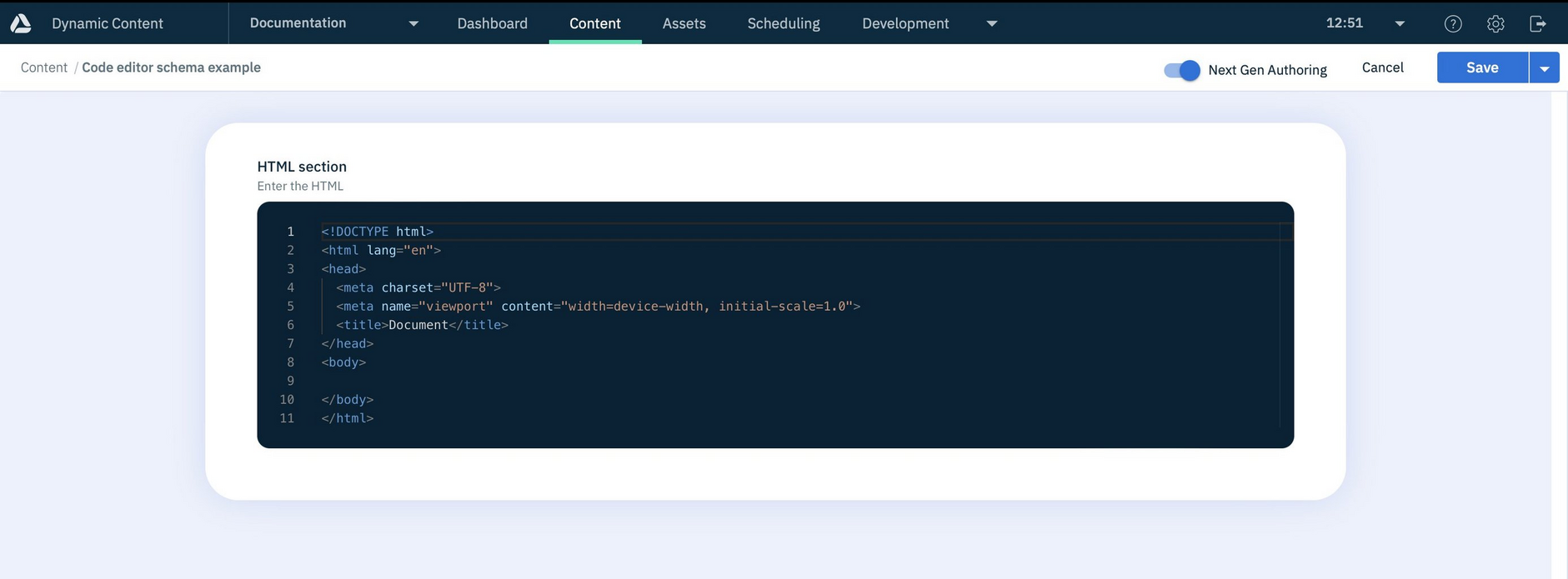
                                            A content form showing a field using the code editor and formatted for HTML